
How to Scrape Multiple Pages Without Code
Easy Scraper AI7 min read
Short answer
To scrape multiple pages without code, open the first page in Chrome, start Easy Scraper AI and set Paging to match the site: Next page for numbered pages, Load more for a button that adds items, or Scroll down for infinite scroll. Press Start. It moves through the pages by itself and stops when no new items appear.
Transcript
- Here's how to scrape a list that runs over multiple pages, without writing code.
- Open the first page of the list.
- Click the Easy Scraper AI icon to open the side panel.
- Under Paging, choose Next page. The button is found for you.
- Press Start.
- The page counter goes up as it moves through the pages.
- For a page that keeps loading as you scroll,
- choose Scroll down instead.
- For a Load more button, choose Load more.
- It stops by itself when there is nothing new.
- Press Stop any time.
- Close the panel and come back later, and it offers to continue.
- Easy Scraper AI. A no-code web scraper for Chrome.
On this page
Most lists on the web don't fit on one page. They are split into numbered pages, hidden behind a Load more button, or loaded bit by bit as you scroll.
Tutorials for this usually involve Python and a headless browser. This guide does the same job in Chrome with a few clicks, on Books to Scrape, a practice site whose catalog runs to 50 pages.
What you need
- Google Chrome on a computer (version 114 or later)
- The Easy Scraper AI extension
- The first page of the list open in a tab
Steps
Step 1: Open the first page and the side panel
Start on page one of the list and click the Easy Scraper AI icon. Check that the list was detected and untick the columns you don't need.
Step 2: Find out how the site loads more
Scroll to the bottom of the list. Do you see page numbers or a Next link, a Load more button, or do new items simply appear as you scroll? That decides the option in the next step.
Step 3: Pick the matching option under Paging
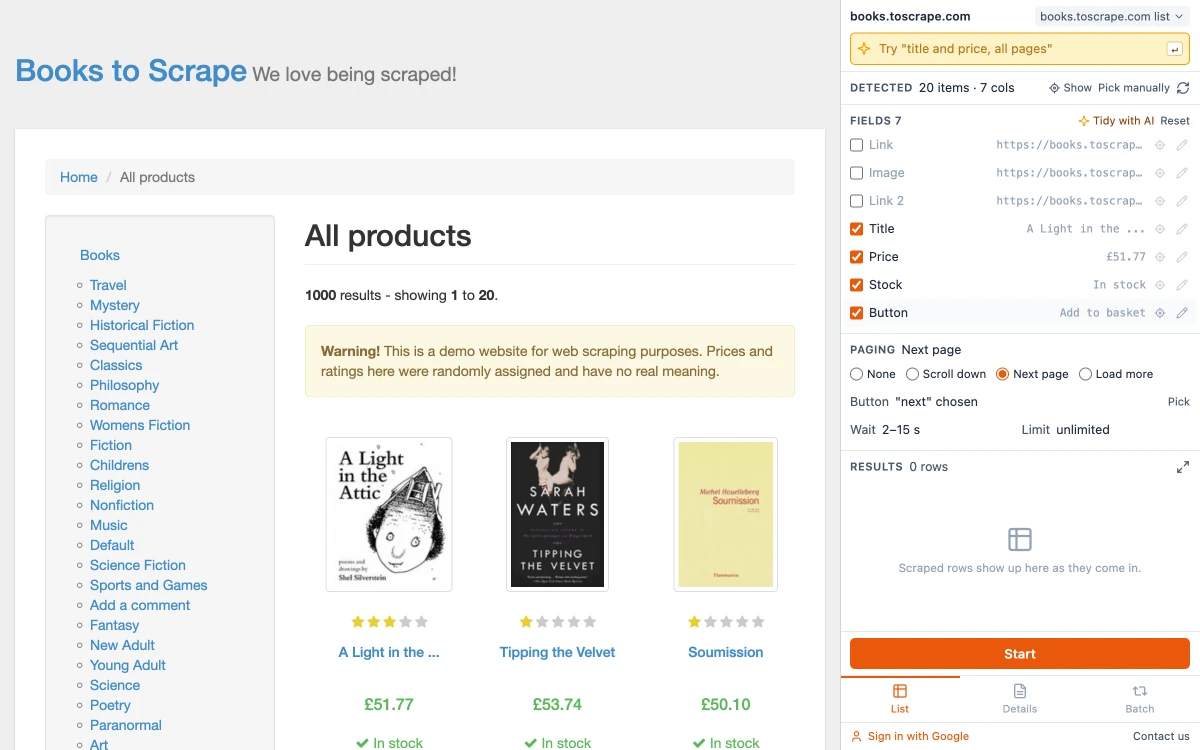
Choose Next page, Load more or Scroll down. For the two button options, the button is looked for automatically and shown next to "Button" — on the practice site it finds the "next" link by itself.
Step 4: Pick the button yourself if needed
If "Button" stays empty, or shows the wrong one, click Pick and then click the right button on the page.
Step 5: Press Start
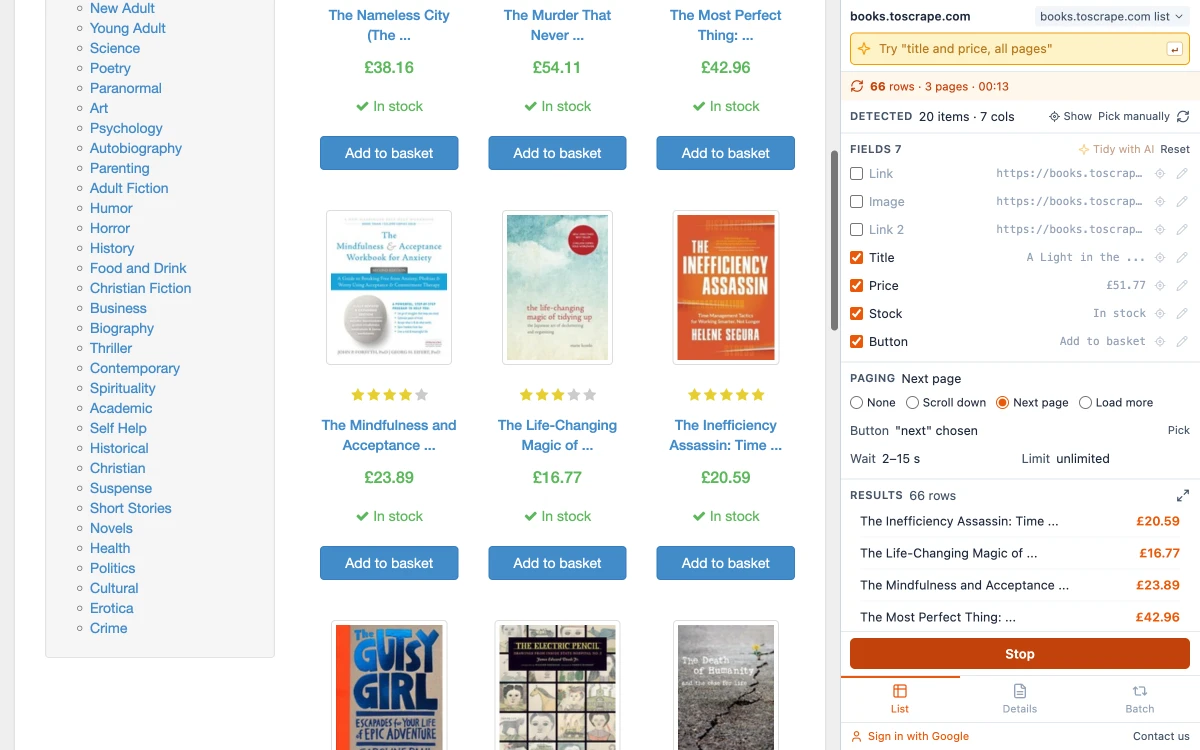
The counter shows rows and pages — "66 rows · 3 pages" in the screenshot. Each time the current items are collected, the next page is loaded and collected too, and the newest rows appear under Results.
Step 6: Let it finish, or stop it
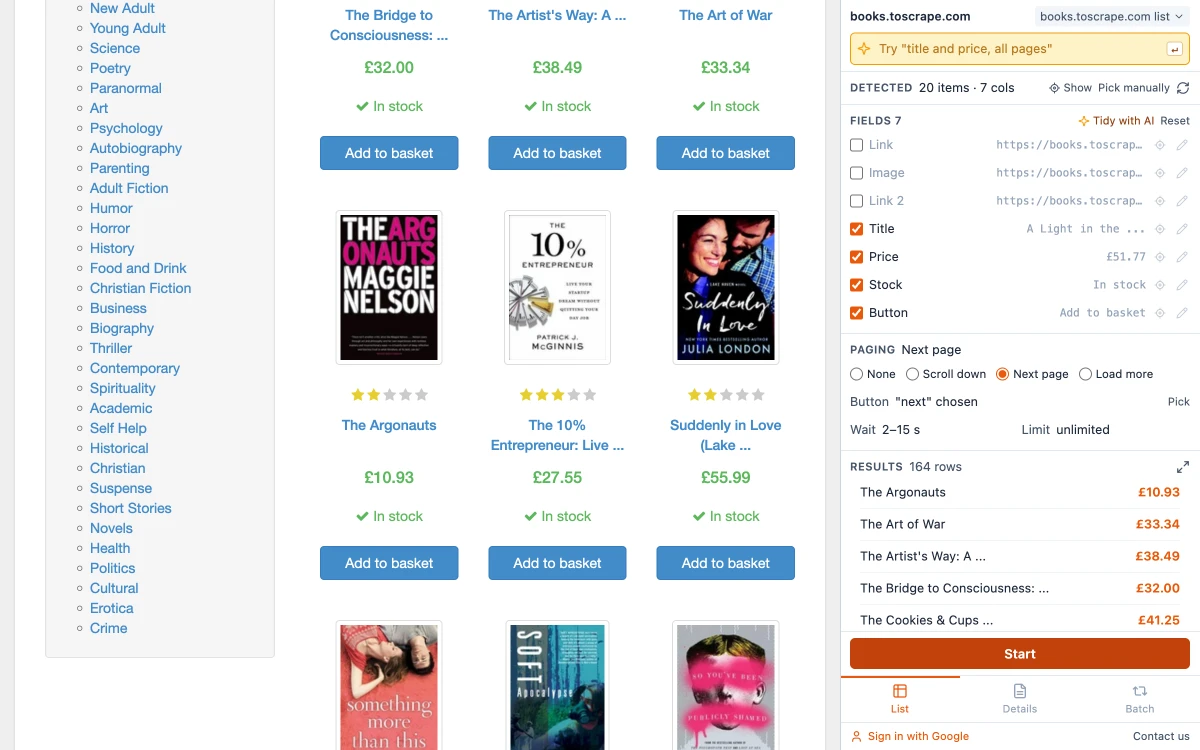
It stops by itself when a page brings nothing new. Press Stop to end early; the rows collected so far are kept. In the example, stopping after eight pages left 164 rows.
The three kinds of paging
| What you see on the site | Choose | What happens |
|---|---|---|
| Page numbers or a Next link | Next page | The button is clicked and the new page is collected |
| A Load more or Show more button | Load more | The button is clicked and the added items are collected |
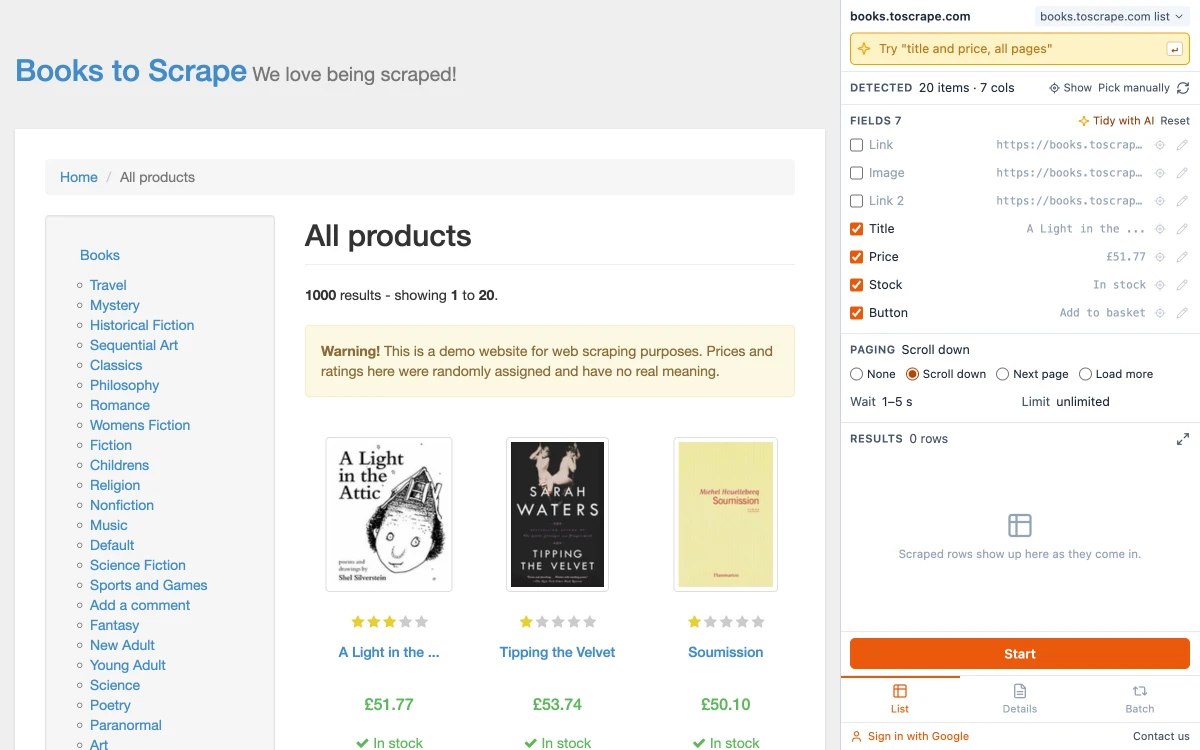
| New items appear as you scroll | Scroll down | The page is scrolled to the last item until nothing new loads |
| Everything is on one page | None | Only the current page is collected |
Infinite scroll
Pages with infinite scroll load items only when you reach the bottom, and many of them remove earlier items as you go to save memory. Scroll down handles both: it scrolls item by item and keeps count, so nothing is skipped or collected twice.
Keep the tab in view
If you switch to another tab while a run is going, the run pauses, because many sites stop loading new items in a background tab. Come back to the tab and it continues by itself.
If the run is interrupted
Progress and collected rows are saved as it goes. If you close the side panel or the browser, open the panel on the same site again and you are asked "Resume the last run?". Choose Continue to carry on, Discard to start over, or View results to export what was collected.
Slow sites and limits
After each click or scroll there is a wait for new items, within the time window shown next to "Wait" (2 – 15s by default). On a slow site the next items may arrive late; when a run ends too early, start it again on the same page. "Limit" caps how many items a run collects; it is unlimited unless you set it.
Be considerate with the pace: a run requests pages about as fast as a person clicking through them, but a catalog of thousands of pages is still a lot of requests. Whether you may collect the data at all is a separate question, covered in whether web scraping is legal.
When each item has its own page
Paging collects what the list shows. If you also need fields that only appear on each item's own page, keep the link column ticked and then scrape a list of URLs with it.
Common questions
Set the Paging option that matches the site and press Start. It repeats until no new items appear.
Related guides
How to Scrape a List of URLs
Pick the fields once on one detail page, then run a whole list of URLs and collect them all into one table.
Read guideHow to Extract a Table from a Website
Pull a table, a card grid or a search result list off a web page and keep only the columns you want.
Read guideHow to Extract Data from a Website to Excel
Three ways to turn a list or table on any website into an Excel file, shown on a real example with the exported data.
Read guide