
No-code web scraper for Chrome
Open any page with a list — products, search results, a directory — and Easy Scraper AI finds it, splits it into columns and scrapes page after page into CSV or JSON. No selectors, no scripts.
Free. No account needed.
Transcript
- Here's how to turn a list on a web page into a table, without writing code.
- Open any page with a list of items, like this catalogue of books.
- Click the Easy Scraper AI icon, and the side panel opens.
- The list is detected on its own: twenty items, seven columns.
- Untick the columns you don't need.
- Under Paging, choose Next page.
- Press Start. It walks through the pages by itself, and the rows come in as it goes.
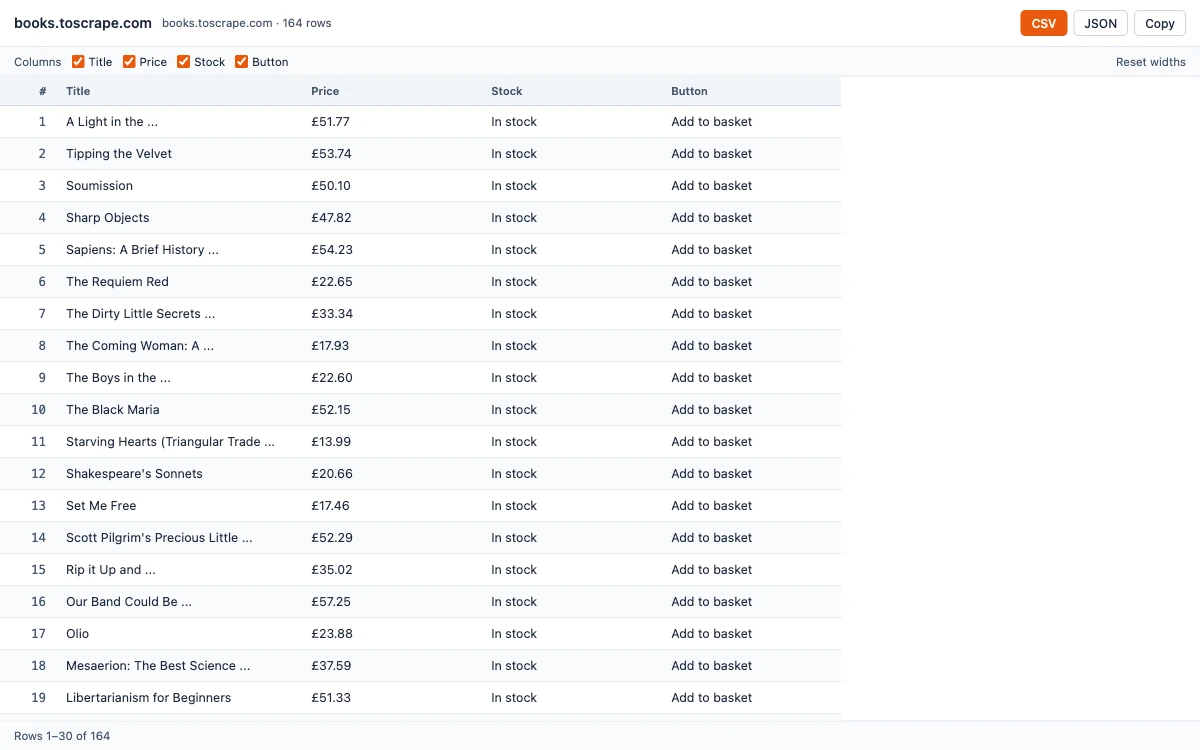
- Open the results window to see the whole table.
- Export it as CSV or JSON, or copy the table.
- Easy Scraper AI. A no-code web scraper for Chrome.
Scrape a website in three steps
Open the page and click the icon
Go to the page with the data and click the Easy Scraper AI icon. The side panel opens next to the page, so you keep seeing what you're scraping.
Check the list it found
The main list is detected on its own and every item is split into columns. Untick the ones you don't need. If it picked the wrong list, point at one item and it looks again. It works the same way when you extract a table or list.
Press Start, then export
Choose how the site loads more items — Next page, Load more or Scroll down — and press Start. When it finishes, open the results window and download CSV or JSON, or copy the table.
A web scraper Chrome extension that does the setup for you
Finds lists automatically
Product grids, search results, directories, job boards and tables are detected without any setup. Each column gets a plain name such as Title or Price, which you can change, and hovering a column shows where it sits on the page.
Scrapes every page, not just the first
It clicks Next page, clicks Load more or scrolls down for you, and stops by itself when nothing new shows up. Here is how to scrape every page of a list.
Picks any field you point at
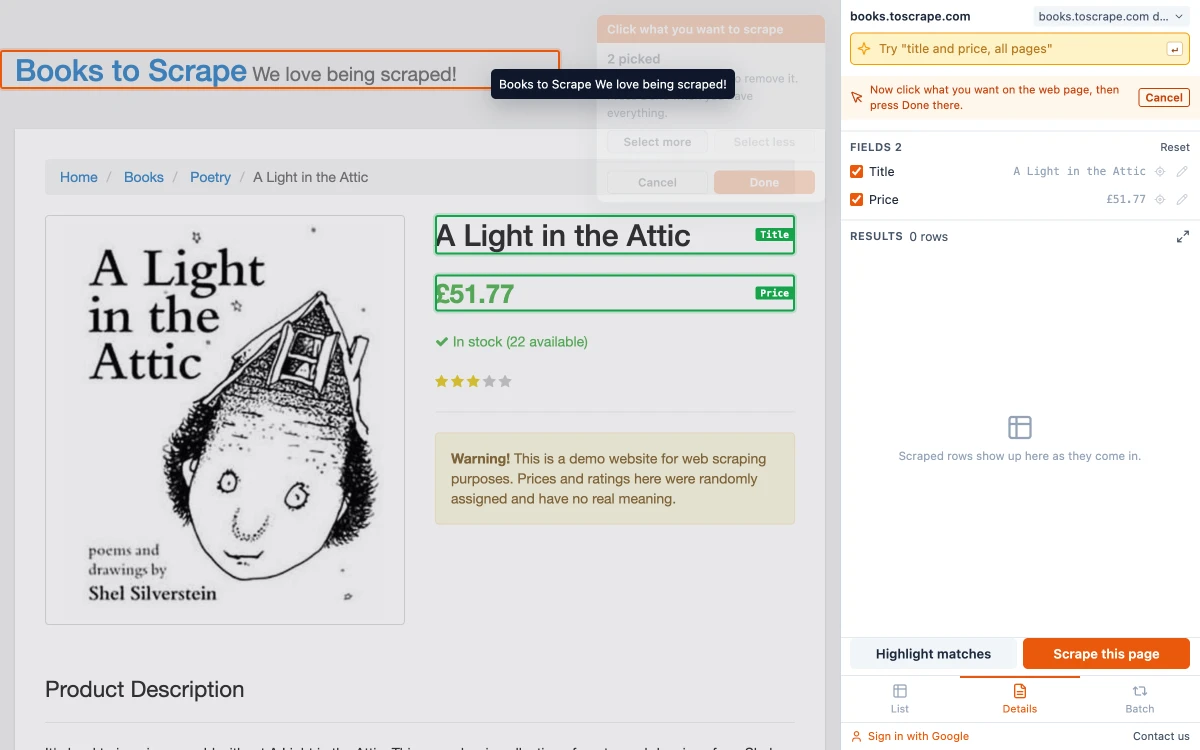
On a detail page, click the title, the price, the image or anything else. If an outline is too small or too big, Select more and Select less adjust it. Your picks are saved as a template you can reuse.
Runs a list of URLs
Upload a CSV of links, or reuse the link column from a list you just scraped. Each page is opened in turn and the same fields are collected into one table.
Exports clean data
Download CSV or JSON, or copy the table straight into Google Sheets. The CSV opens correctly in Excel, accented and non-Latin text included. See how to export website data to Excel.
Picks up where it stopped
Progress is saved as it goes. If the panel is closed in the middle of a run, next time it offers to continue. Settings are remembered for each website.
An AI helper that runs on your computer
On computers that support Chrome's built-in AI (Gemini Nano), Easy Scraper AI can help with the setup. It chooses the main list when a page has several, finds a next-page button that is only an icon, tidies the column names in one click, and turns a plain sentence such as "title and price, all pages" into settings. You see a preview before anything changes, and every suggestion can be undone. It asks before the one-time model download.
The AI runs on your device and only helps you set things up. The scraping itself uses no AI, so it is fast and gives the same result every time. If your computer doesn't support the built-in model, the AI buttons simply don't appear and everything else works the same. More on this in what an AI web scraper really does.
What people use a data scraper for
Price and product research
Collect products, prices and ratings from an online store into one spreadsheet.
Lead lists
Turn a business directory or a listing site into rows you can sort and filter.
Jobs and property listings
Export search results to Excel and compare them side by side.
Research
Gather a list of articles, sources or records without copying and pasting.
Guides and articles
Step-by-step guides with real screenshots, and background reading for when you want to know more.
How to Extract Data from a Website to Excel
Three ways to turn a list or table on any website into an Excel file, shown on a real example with the exported data.
Read guideHow to Extract a Table from a Website
Pull a table, a card grid or a search result list off a web page and keep only the columns you want.
Read guideHow to Scrape Multiple Pages Without Code
Follow Next page buttons, Load more buttons and infinite scroll automatically, and collect every item into one table.
Read guideHow to Scrape a List of URLs
Pick the fields once on one detail page, then run a whole list of URLs and collect them all into one table.
Read guideIs Web Scraping Legal? What the Law Actually Looks At
Scraping public pages is not illegal in itself. What matters is what you collect, whether you agreed to terms that forbid it, and how you go about it.
Read articleBest Web Scraper Chrome Extensions in 2026: 5 Compared
Five extensions, what each is good at and where each stops, taken from their own listings and pricing pages.
Read articleYour scraped data stays in your browser
The rows you scrape, your saved settings and your exports are stored on your own computer. We never receive the pages you scrape or the data you export.
The details are in our privacy policy.
Please scrape responsibly: respect each website's terms and only collect data you are allowed to use.
Get your first table in a minute
Install the extension, open a page with a list and press Start.