
Web Scraping with Google Sheets: 3 Ways to Get Website Data into a Sheet
Easy Scraper AI7 min read
Short answer
Google Sheets can pull data from public web pages with two formulas: IMPORTHTML for tables and lists, and IMPORTXML for anything you can describe with XPath. They refresh about once an hour but cannot read pages that need a login or build their content with scripts. For those, scrape the page in your browser and paste the result.
On this page
Google Sheets has web import built in, and for the right kind of page it is the simplest tool there is: one formula, and the table appears and keeps itself up to date.
The catch is the kind of page. This guide covers the two formulas, what stops them, and what to do when the page is a card list, sits behind a login or loads as you scroll.
What you need
- A Google account and a blank sheet
- The address of the page with the data
- For method 3: Google Chrome and the Easy Scraper AI extension
Steps
Step 1: Method 1: IMPORTHTML for a table or a list
Type the formula into an empty cell with the page address, the word "table" or "list", and a number that says which table or list on the page you want, starting at 1. The formulas are listed just below the steps.
Tables and lists are numbered separately, so a page can have both a table 1 and a list 1. If the wrong one comes back, raise the number until you get the right one.
Step 2: Method 2: IMPORTXML for anything else
IMPORTXML takes the page address and an XPath expression that describes which elements to fetch. "//h2" returns every second-level heading; "//a/@href" returns every link address. It is more flexible than IMPORTHTML and correspondingly fiddlier: you need to look at the page's code to write the expression.
Step 3: Method 3: scrape in the browser and paste
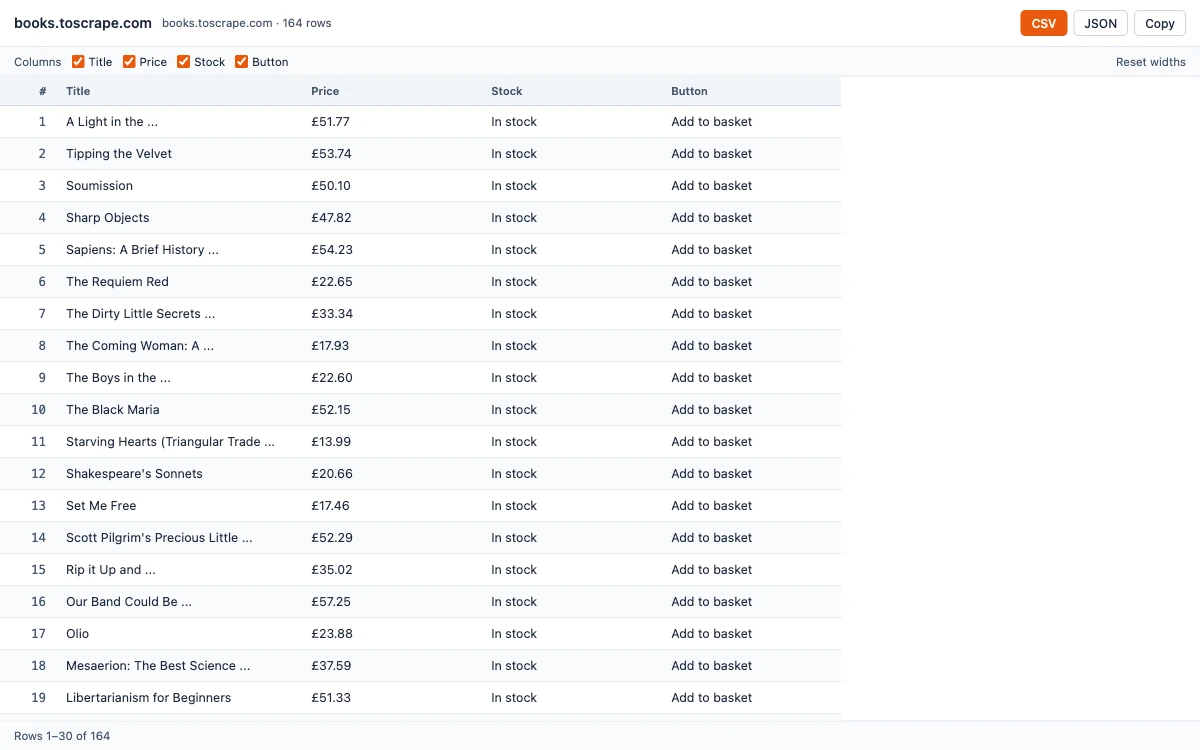
Open the page in Chrome, click the Easy Scraper AI icon and let it detect the list. Press Start, click "Open results window", then Copy. Paste into cell A1 of an empty sheet: every column lands in its own column.
For bigger tables, download the CSV instead and use File → Import in Google Sheets.
The formulas to copy
=IMPORTHTML("http://en.wikipedia.org/wiki/Demographics_of_India","table",4)=IMPORTXML("https://example.com/","//a/@href")Google documents both: IMPORTHTML and IMPORTXML.
Where the formulas stop
- Public pages only. The page is fetched by Google's servers, not by your browser, so anything behind a login is out of reach.
- No content built by scripts. The formulas read the page as it is delivered. Lists that are filled in afterwards by JavaScript — most modern shops and search pages — come back empty.
- One address per formula. A list spread over twenty pages needs twenty formulas, or addresses built from a column of page numbers.
- Real tables and lists only, for IMPORTHTML. Card grids need IMPORTXML and an XPath for each column.
- Sites can refuse. A site that blocks automated requests returns an error instead of data.
Which method to use
| Method | Reads | Cannot read | Stays up to date |
|---|---|---|---|
| IMPORTHTML | Real tables and lists on public pages | Card grids, logged-in pages, script-built content | Yes, about hourly |
| IMPORTXML | Anything on a public page you can describe with XPath | Logged-in pages, script-built content | Yes, about hourly |
| Browser scraper, then paste | What you see in your browser, including after logging in and across many pages | Data the page never shows | No — run it again when you need fresh data |
Tidy the data in Sheets
- Prices as numbers. Strip the currency sign in a new column:
=VALUE(SUBSTITUTE(B2,"£",""))- Remove duplicates. Data → Data cleanup → Remove duplicates.
- Freeze the header. View → Freeze → 1 row.
- Keep a snapshot. Imported ranges change when the formula refreshes. To keep today's values, copy the range and use Paste special → Values only.
Common errors
- "Imported content is empty": the table or list is built by scripts, or the index is too high. Try a lower index, then method 3.
- "Could not fetch url": the site refused the request or the address is wrong. Open it in a private window to check that it is public.
- #REF! with "array result was not expanded": something is in the cells the import needs. Clear the area below and to the right of the formula.
Prefer Excel? The same three routes exist there; see how to export website data to Excel.
Common questions
Yes, within limits. IMPORTHTML and IMPORTXML fetch data from public pages. They cannot log in, click, scroll or read content that scripts add after the page loads.
Related guides
How to Extract Data from a Website to Excel
Three ways to turn a list or table on any website into an Excel file, shown on a real example with the exported data.
Read guideHow to Extract a Table from a Website
Pull a table, a card grid or a search result list off a web page and keep only the columns you want.
Read guidePrice Scraping: How to Collect Prices from a Website into a Spreadsheet
Collect product names and prices from a site without code, then compare two snapshots to see what changed.
Read guide